
Library
The library is the heart of LibrisLog. It organizes your books into four reading statuses and provides tools for managing your collection.
Reading Statuses
Books are categorized into four statuses:
| Status | Description |
|---|---|
| Want to Read | Books you plan to read |
| Currently Reading | Books you're actively reading |
| Read | Books you've finished |
| Did Not Finish | Books you started but abandoned |
Each status has its own tab in the library view, making it easy to browse your collection by reading state. A fifth All Books tab shows every book regardless of status; like the other tabs it supports search and sorting (smart sort is disabled there, since it's based on per-status defaults).
Possession
Possession is separate from reading status. Choose whether a book is owned, borrowed, available digitally, or still needs to be acquired. In the Want to Read view, books that still need to be acquired show a shopping-cart indicator. Use the possession filter to narrow the list without changing its newest-first order.
Each book can also have an optional medium: Print, eBook, Audiobook, Comic / Graphic Novel, or Magazine / Newspaper. Use the medium filter to narrow the library, or search with medium:audiobook. A missing medium is valid when it is not known yet.
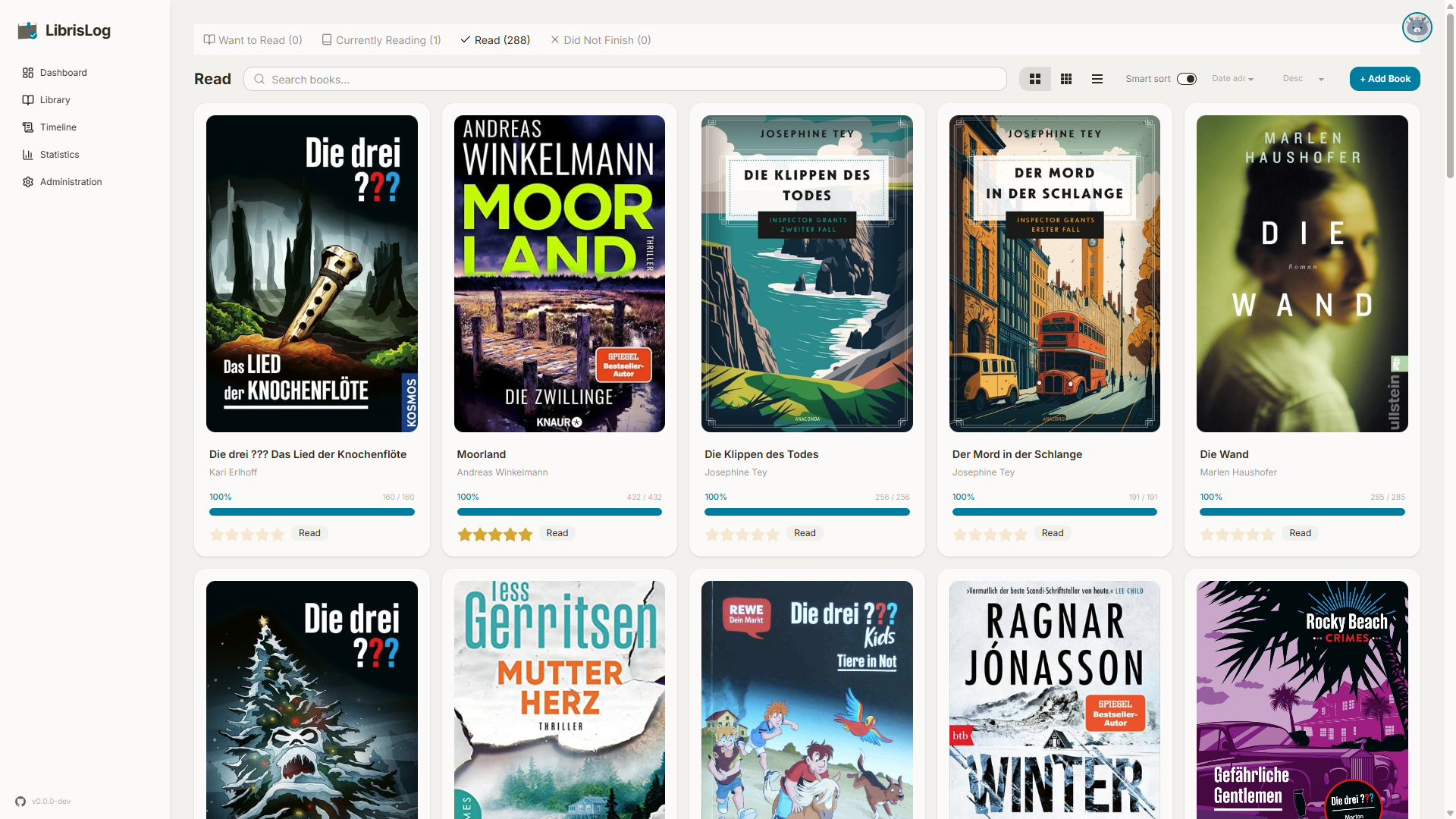
Navigation
- Switch between tabs using the bottom navigation bar on mobile or the sidebar on desktop
- Books are displayed as cards with cover images, titles, and authors
- Click any book to open the detail view
Book Cards
Each book card shows:
- Cover image (or placeholder if no cover)
- Title and author
- Current reading progress (for "Currently Reading" books)
- Star rating (for "Read" books)
Detail View
Clicking a book opens the detail dialog/drawer showing:
- Full cover image
- Complete metadata (title, subtitle, author, ISBN, publisher, year, pages, language, medium)
- Reading status badge
- Star rating (clickable to change)
- Reading progress slider (for books with page count)
- Tags
- Notes
- Blurb/description with expand/collapse
- Action buttons: Edit, Delete
Adding Books
Manual Entry
Use the "Add Book" button to manually enter book details. Fill in title, author, and optional fields like ISBN, publisher, page count, and medium. The medium can be left unset.
A book can have multiple authors: type a name and press Enter to add it as a chip. Authors are shown joined with "; " throughout the app, so names written last-name-first (e.g. "Doe, Jane") stay unambiguous.
Import Search
Search external sources for book metadata:
- Open Library — Free, no API key required
- BnF (Bibliothèque nationale de France) — Free, no API key required; strong French-language coverage
- Inventaire.io — Free, no API key required; ISBN searches only, and the only new source that provides cover images
- Library of Congress — Free, no API key required; US/English coverage. Uses unencrypted HTTP, see Configuration
- Deutsche Nationalbibliothek (German National Library) — Free, no API key required; strong German-language coverage. Note that the DNB transliterates umlauts in its catalogued titles, so searching for Das Maß returns a record titled Das Mass der Erde. An ISBN lookup returns the title the DNB holds for that ISBN, transliterated or not
- Hardcover.app — Requires API token, off in
.env.exampleby default - Google Books — Requires API key, off in
.env.exampleby default, fallback only
All enabled sources are queried in parallel for both title and ISBN searches. Inventaire is the exception: it has no title-search route, so on a title search it is reported as skipped. Google Books is only used as a fallback when the other sources return no results, or on demand via the Search Google Books too button, which adds Google Books results to the current results.
Each source can be switched off individually. Hardcover and Google Books are set to false in .env.example, because neither can answer without credentials: add the key or token and set the matching *_IMPORT_SEARCH_ENABLED to true. A source that is on but has no credential is listed as skipped and is never contacted. See Configuration for the settings and for the rule that at least one source must stay usable.
While a search is running, the Search button changes to Cancel, so you can stop the request at any time and refine your query.
The search dialog also supports multiple parallel searches. Click New parallel search to open another independent search panel. Each panel keeps its own results while selected books can be added to the shared basket. Choose the possession and medium once above the panels; those values apply to books added from any search.
How results are grouped
Different providers often describe the same book slightly differently (title language, page count, publisher, cover). Instead of dropping these variants, LibrisLog keeps every result and groups the ones that represent the same book. Each group shows a "N results" badge with a Show editions toggle: expand it to review the individual records and pick the one you want to import.
Results are grouped by this rule:
- Same ISBN: if two results carry the same ISBN, they are grouped together. ISBN-10 and ISBN-13 forms of the same ISBN count as equal (e.g.
0441013597and9780441013593). - No ISBN, same title + same authors: results without an ISBN are grouped by a normalized title (case- and whitespace-insensitive) together with the same sorted author names.
Consequences you may notice:
- Two results with the same title but different ISBNs are not grouped: they are different editions (different language, publisher, or page count) and appear as separate entries.
- A result with an ISBN and a result without one are never grouped, even if the title and authors match.
- Results that differ only in metadata (cover, publisher, page count, description) but share an ISBN or title+author are grouped so you can compare them side by side.
Because an ISBN can only be owned once per user, a group with a shared ISBN always represents a single book, so importing one variant is enough.
ISBN Barcode Scan
Use the camera to scan ISBN barcodes. The app uses the device's camera with real-time barcode detection to quickly look up books.
Requires a secure context
Camera access is only available when LibrisLog is served in a secure context. A page is a secure context when it is served over HTTPS or from http://localhost (or http://127.0.0.1). Accessing the app via a plain http:// address on a remote host — e.g. http://192.168.1.10:8001 — is not a secure context, and the camera will not start. See MDN: Secure contexts for details.
If the barcode scan button is hidden or the scanner shows a black box, your browser is likely blocking camera access because the app is not running in a secure context. Serve LibrisLog behind HTTPS (a reverse proxy with a TLS certificate) or access it via localhost to enable scanning.
Editing Books
Click the "Edit" button in the detail view to modify any book property. Changes are saved immediately.
Covers
Automatic Cover Search
When adding a book, the app automatically searches for cover images from:
- AbeBooks
- Open Library
- Amazon
- Hardcover
Cover Picker
If automatic search doesn't find a suitable cover, you can:
- Upload an image file
- Paste an image URL
- Trigger a manual cover search
Cover Caching
Downloaded covers are cached locally in the COVERS_DIR directory to avoid repeated external requests.
Search
- Search books by title, author, or tags using the search bar — the result count updates as you type
- Field-specific queries are supported, e.g.
author:Murakami,availability:owned, ortag:fantasy. See the search syntax reference for the full list of prefixes and examples. - Press Enter to open the dedicated search results page with a full results grid, load-more pagination, and the same book detail interaction as the library
- From any page, navigate directly to
/search?q=your+queryfor quick access
Sort
- Sort by title, date added, date started, date finished, or rating
- Sort order: ascending or descending
View Modes
Switch between grid view (cover-focused) and list view (compact) using the view toggle.