Dashboard
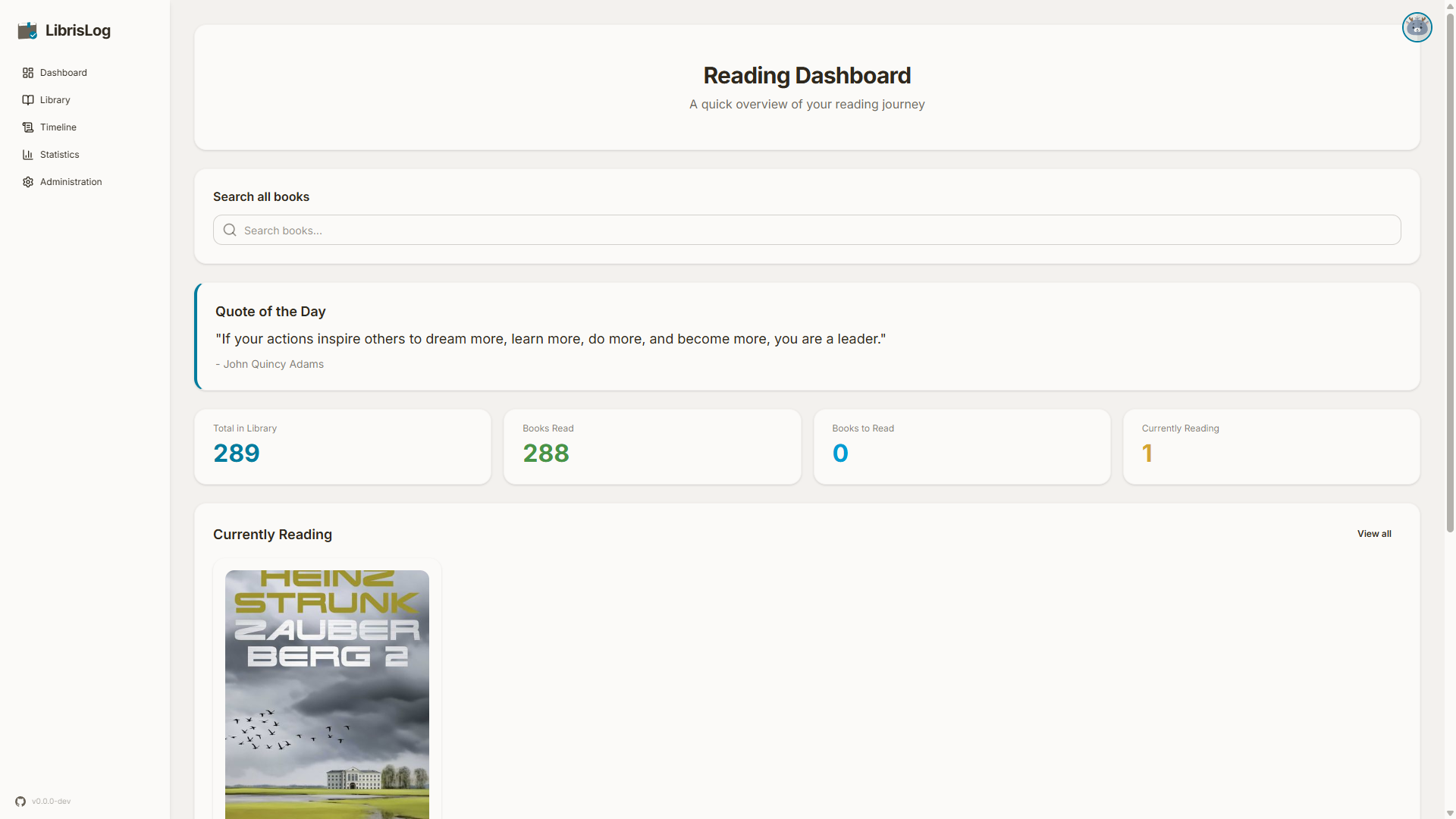
The dashboard is the first page you see after logging in. It gives you an overview of your reading activity and quick access to your current books.
Search
The search bar at the top of the dashboard lets you find books by title, author, or tags. It also supports field-specific queries such as author:Murakami and negation such as Haushofer -"Die Wand". See the search syntax reference for the full list of supported prefixes and examples.
The result count updates as you type and matching books appear in a dropdown below the bar.
- Arrow keys to navigate the dropdown
- Enter opens the selected book's detail view; if no item is selected, it navigates to the dedicated search results page (
/search) showing all matches - Escape to close the dropdown
- Click the search icon to focus the input
The search results page shows a full results grid with load-more pagination and the same book detail interaction as the library.
Currently Reading
Books you marked as "Currently Reading" appear with progress bars showing the current page and percentage. Click a book to open the detail view and update your progress.
Next Suggestions
Books from your "Want to Read" list are shown as suggestions — pick one to start reading next.
Inspirational Quote
A random quote is displayed at the top of the dashboard (configurable via DASHBOARD_QUOTE_ENABLED in .env).
Reading Streaks & Goals
A gamification section on the dashboard keeps you motivated:
- Current Streak — the number of consecutive days with reading activity, counted backwards from today. Today counts as the first day when you have logged progress; a not-yet-logged today does not break your streak.
- Longest Streak — your all-time longest run, with the start and end dates shown as a subtitle.
A day counts as a reading day when you logged at least one reading-progress entry on it, or when you finished a book that has no progress entries. Streaks are computed on the fly in your configured timezone.
When you enable a reading goal on your profile page, the section also shows playful progress cards for every active goal — a progress bar, the current value vs. the target, and a "Goal reached" badge once you hit it. The card updates immediately when you save reading progress or delete a log entry from the book detail view.
The whole section can be hidden from the profile page under Reading Goals → "Show reading streaks & goals on dashboard".
Tag Cloud
The most common tags in your library are shown, sized by frequency. Click any tag to filter your library by it.
Timeline
Access the timeline page from the left navigation menu under "Timeline". The timeline page shows a chronological view of your reading activity:
- Books started and finished
- Reading progress updates
- Date conflicts (when a book's start date is after its finish date)