
Profile
The profile page is your personal settings hub. Access it by clicking your avatar or name in the top-right corner and selecting "Profile".
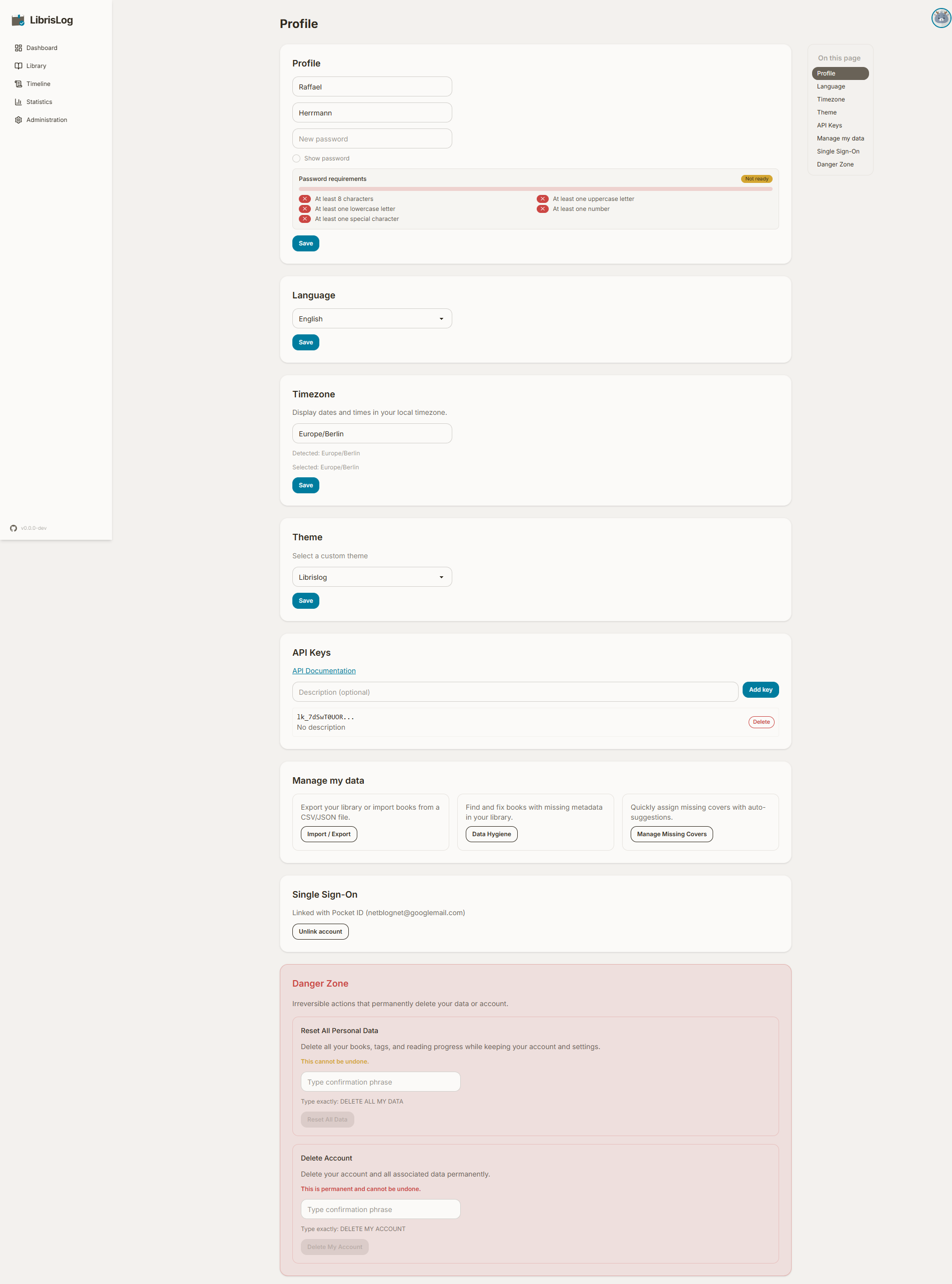
Profile Information
Update your first name, last name, or password. The password field is optional — leave it blank to keep your current password. A password strength indicator and complexity requirements are shown below the input.
Forgot your password?
If you have forgotten your password and mail is configured, click the "Forgot password?" link on the login page. Enter your email address and a reset link will be sent to you. The link is valid for one hour and can only be used once. After a successful reset, all existing sessions are invalidated and you will need to log in again.
This feature requires SMTP settings to be configured — see Configuration.
Language
Switch the UI language between available locales. The change applies immediately after saving.
Timezone
Set your preferred timezone for date/time displays (e.g., for the calendar heatmap and progress log timestamps). Your browser's detected timezone is shown as a reference.
Theme
Choose a custom DaisyUI theme from the dropdown. The theme previews in real-time as you browse the dropdown, and the selection is saved to your profile so it persists across sessions.
Reading Goals
Set personal reading targets that are tracked on the dashboard's Reading Streaks & Goals section:
| Goal | Default target |
|---|---|
| Pages per Day | 20 |
| Pages per Month | 300 |
| Books per Month | 2 |
| Books per Year | 25 |
Every goal is disabled by default. Toggle a goal on and set its target (at least 1) — enabled goals then appear as progress cards on the dashboard. Saving shows a confirmation notification like the other settings sections.
The "Show reading streaks & goals on dashboard" switch above the goals disables or re-enables the entire streaks & goals section on the dashboard.
See Dashboard → Reading Streaks & Goals for details on how streaks and goal progress are calculated.
Reading Date Automation
By default, LibrisLog fills in missing reading dates when you change a book's status:
- Moving a book to Currently Reading sets its start date to the current date and time if no start date exists.
- Moving a book to Read or Did Not Finish sets its finish date to the current date and time if no finish date exists.
Existing dates entered by you are preserved and are never overwritten automatically.
You can disable these behaviors independently in the Reading Date Automation section of your profile. When disabled, the status still changes, but the corresponding date remains empty. This is useful when you know a book's status but do not know when you started or finished it.
Books without the relevant dates are omitted from date-based views and calculations, such as the reading timeline, finished-books-by-month charts, reading duration, and date-based goals. They remain included in status-based totals, such as the number of books marked Read.
Disabling automation does not remove existing dates or disable date-conflict protection. It only prevents LibrisLog from creating a missing date automatically.
URL/Profile Sharing
Create a read-only public view of your reading profile and share it with a URL. The shared page does not expose editing controls, notes, blurbs, or your email address.
Create a Profile URL
- Open Profile and scroll to Share Profile.
- Click Create New URL.
- Enter a name for the link, such as
Friends & family. - Choose who can access it:
- Everyone — anyone with the URL can view the profile, without logging in.
- Logged-in users only — viewers must be signed in to LibrisLog.
- Under Content, select the profile sections to share. Statistics can be enabled separately and configured by group.
- Choose the language for this URL. The public page uses the link's language independently of your viewer's current UI language.
- Under Validity, leave the link unlimited or set an expiration date.
- Save the link.
The complete URL is shown once after creation. Copy it immediately or open it in a new tab. For security, the full token is not shown in the link list unless you explicitly reveal it through the link actions.
Manage Existing URLs
Each link appears in the Share Profile list with its name, access level, status, token prefix, and expiry information. The available actions are:
- Copy link — copy the URL to the clipboard.
- Open link — open the read-only profile page in a new tab.
- Edit — change the access level, shared sections, statistics, language, or expiry date.
- Delete — revoke the link immediately. Anyone using it will lose access.
Treat an Everyone URL like a public page: anyone who receives it can view the selected information until the link expires or is deleted. Create separate links when you want different audiences or different languages.
API Keys
Create and manage API keys for headless access to the REST API. Each key can have an optional description. Keys are shown once at creation — copy it immediately, as it cannot be retrieved later.
See the API Keys guide for detailed setup instructions.
Embed Tokens
Create scoped embed tokens for iframe dashboard integrations (e.g. Homarr). Each token can have an optional name and a comma-separated list of allowed origins. You can also configure an expiry date.
To create a token:
- Enter a name for your token.
- Optionally restrict allowed origins (comma-separated URLs). Leave empty for wildcard access.
- Click Add token.
- Copy the displayed token immediately — it is shown only once.
Existing tokens can be rotated (revokes the old token and creates a new one with the same settings) or deleted from the list.
See the Embed API integration guide for usage details and a list of supported dashboard integrations.
Data Management
Two data management tools are available:
- Import / Export — Export your library as JSON, CSV, or ZIP, or import from the Goodreads or Bookstats presets, Excel (XLSX), or generic CSV/JSON with field mapping and Python transforms. See Import & Export.
- Data Hygiene — Find books with missing metadata and batch-update them. See Data Hygiene.
OIDC
If the instance has OIDC authentication enabled, you can link or unlink your account to an external identity provider.
Danger Zone
Two irreversible actions are available:
Reset My Data
Deletes all your books, reading progress, and tags. Your account and profile settings are preserved. Type the confirmation phrase to enable the button.
Delete Account
Permanently deletes your account and all associated data. Type the confirmation phrase to enable the button. After deletion, you are redirected to the login page.