
Import & Export
LibrisLog provides multiple ways to get data in and out of the system, ensuring your library is always portable.
Book Import
Search Import
The most common way to add books is by searching external sources:
Click "Add Book" in the library
Enter a title, author, or ISBN in the search box
The app queries:
- Open Library (no key required)
- BnF (no key required; strong French-language coverage)
- Inventaire.io (no key required; ISBN searches only, provides cover images)
- Library of Congress (no key required; US/English coverage, unencrypted HTTP)
- Deutsche Nationalbibliothek (no key required; strong German-language coverage, umlauts transliterated in titles)
- Hardcover.app (if
HARDCOVER_APP_API_TOKENis set andHARDCOVER_IMPORT_SEARCH_ENABLED=true— see API Keys) - Google Books as a fallback (if
GOOGLE_BOOKS_API_KEYis set andGOOGLE_BOOKS_IMPORT_SEARCH_ENABLED=true— see API Keys)
Every source can be disabled individually. Hardcover and Google Books are set to
falsein.env.examplebecause they need credentials; see Configuration.Select a result to import with full metadata and cover
Choose an availability value and, optionally, a medium (Print, eBook, Audiobook, Comic / Graphic Novel, or Magazine / Newspaper) before saving
ISBN Barcode Scan
On mobile devices:
- Tap the scan button in the import dialog
- Point the camera at an ISBN barcode
- The app detects the barcode and searches automatically
- Pick the search result and select an availability value and optional medium before saving
Manual Entry
If no search results are found, enter book details manually. Title, author, page count, and availability are required; all other fields, including medium, are optional.
Authors can be added as multiple values: type a name and press Enter (or pick a suggestion) to add a chip. A book can have any number of authors. Commas inside an author name (e.g. Asimov, Isaac) are preserved — they are not treated as separators.
Search Import
When a search source returns multiple authors for a book (e.g. Open Library, Google Books, or Hardcover), the app keeps them as a list and creates one author per entry. Sources that return a single combined string are split only on ;, &, or and — never on commas.
Data Export
Export your entire library or subsets of data:
Export Formats
| Format | Description |
|---|---|
| JSON | Complete data with all metadata and relationships |
| CSV | Tabular format, one row per book |
| ZIP | Combined JSON + cover images |
Export Datasets
Choose which data to include:
- Books (full metadata)
- Reading progress entries
- Tags
- Cover images
Export Process
- Go to the Data page
- Select datasets and format
- Click Export
- Download the generated file
Data Import
Import data from external sources:
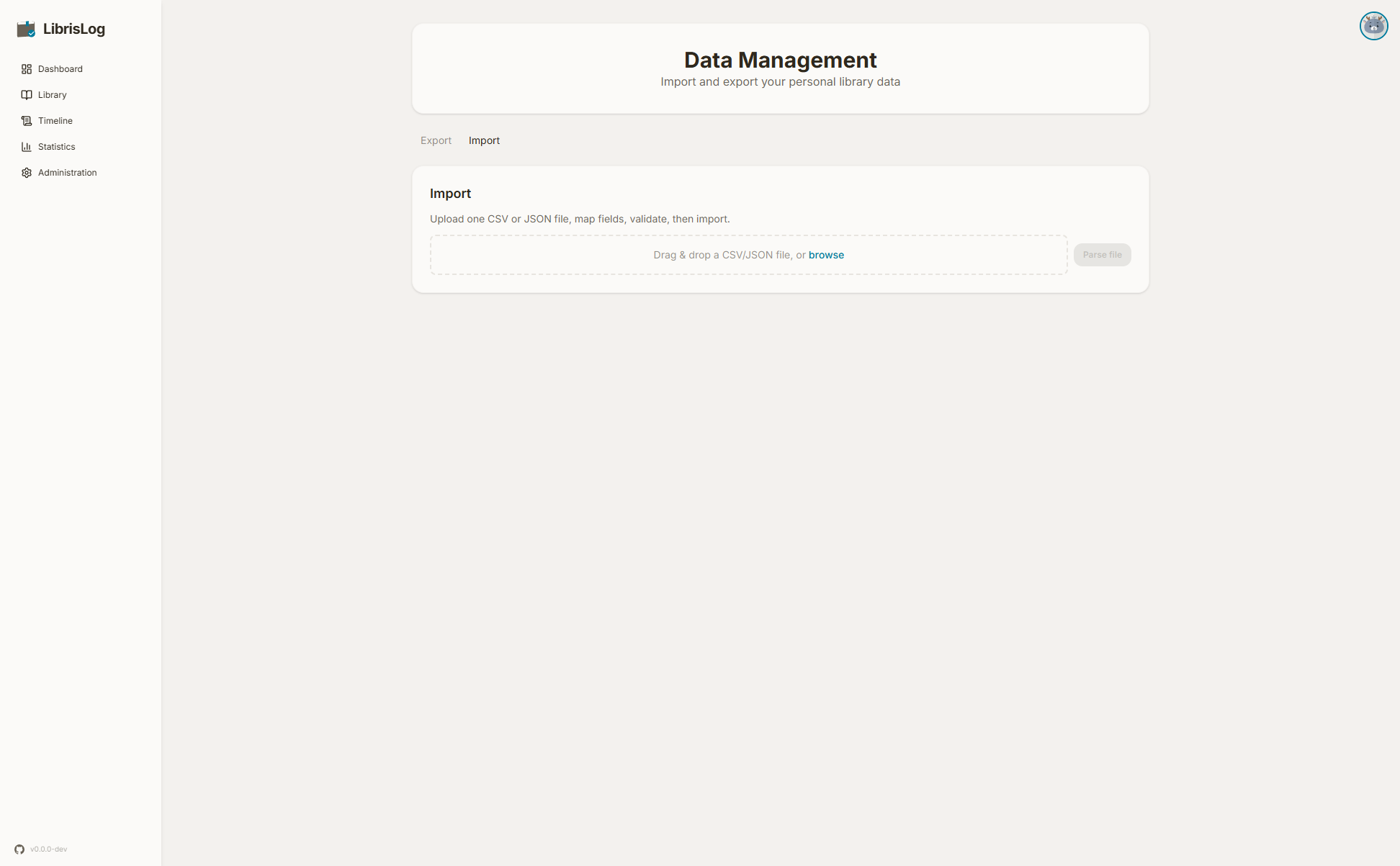
Supported Formats
- JSON — LibrisLog export format
- CSV — Custom field mapping supported
- Excel (XLSX): Custom field mapping supported
The JSON export mirrors the API shape: author is the joined string (separated with ; ), authors is the list of names, and tags is a list of tag names. All three round-trip through the adaptive import.
For CSV files, a delimiter field appears once a .csv file is selected (default ,). Enter the character your file uses to separate columns (e.g. ; for German/Excel exports) before clicking Parse file.
Excel support covers .xlsx and .xlsm workbooks. LibrisLog reads the workbook's active worksheet: the first non-empty row must contain the column headers and every following row is treated as a record. Cell values are read as stored, so percentages, currency, and leading zeros are imported as displayed rather than recomputed, and formula cells use their cached result (a formula without a cached value is imported as empty). If a workbook has several worksheets, save the one you want to import as the active sheet, or export that sheet to CSV first. The parsed sheet name is shown next to the row and field counts after parsing.
Field Mapping
When importing CSV, map source columns to LibrisLog fields:
- Source field dropdown shows all columns from the CSV
- Target field shows available LibrisLog properties
- Optional transform expressions (Python) for data conversion
acquisition_status is required for imports. Map it to one of owned, borrowed, digital_access, or to_acquire; use a transform when the source file uses different names.
The optional medium field can be mapped to Print, eBook, Audiobook, Comic / Graphic Novel, or Magazine / Newspaper. Existing exports include this field and preserve an unset medium as empty/null.
date_added is importable too — useful when migrating from another tool so the original "added to library" dates are preserved (the LibrisLog JSON export includes it, so exports round-trip losslessly). If a row has no date_added, the import timestamp is used.
Authors are adaptive
The import target field is authors. Its source value adapts:
- Array value (e.g. a JSON
authorslist) → each array entry becomes a separate author. - String value (e.g. a CSV cell) → normally becomes one author, and commas inside the name are preserved, so
"Asimov, Isaac"stays a single author. To encode several authors in a single cell, separate them with;,&, orand(e.g."Frank Herbert; Brian Herbert"). This is how the CSV export writes the dedicatedauthorscolumn, so exports round-trip losslessly.
The import preview shows how each row's author value will be interpreted before you import.
The tags field is adaptive too: a JSON tags array contributes one tag per entry, while a comma-separated string (CSV) is split on commas.
Transform DSL
Per-field Python expressions allow data transformation:
# Examples:
value.upper()              # Convert to uppercase
str(int(value))            # Convert to integer then back to string
"https://example.com/" + value  # Prefix a URL
Available variables:
value— The field valuerow— The entire row as a dictionarycontext— Import context (not commonly used)
Predefined Mappings
Common import formats have predefined mappings:
- Goodreads Export — Maps Goodreads CSV columns automatically
- Bookstats Export — Maps the German "Bookstats" Excel/CSV export, translating German reading/acquisition/medium values, converting Excel serial dates, and merging
GenreandKategorieinto tags
Validation
Before importing:
- Parse and preview the data
- Review transformed rows
- Check for errors
- Validate the full dataset
The import process shows progress with a count of imported and failed rows.
Backup & Restore
Backup and restore are admin-only features. See Administration for details.
API Access
For programmatic import/export, use the REST API. See the API documentation for details.